🔐 Logging into the Web Portal
📌 Overview
This guide will help you sign into the Wound³ web portal, which you can access via wound3connect.com on all up-to-date browsers.
🔓 Logging In
When you log in, you will be required to enter your username (the email address you signed up with) and the password you chose when you created your account.
📩 Multi-Factor Authentication: For security purposes, you will also be asked to enter a One-Time Password, which is a 6-digit code that is sent to your email.
🎥 Watch the Tutorial
🌀 Forgot Your Password
If you forgot your password, you can request a reset link by selecting "Forgot Password" from the login screen and entering your registered user email. You will receive an email with a password reset link. For security reasons, your new password cannot be your old password.
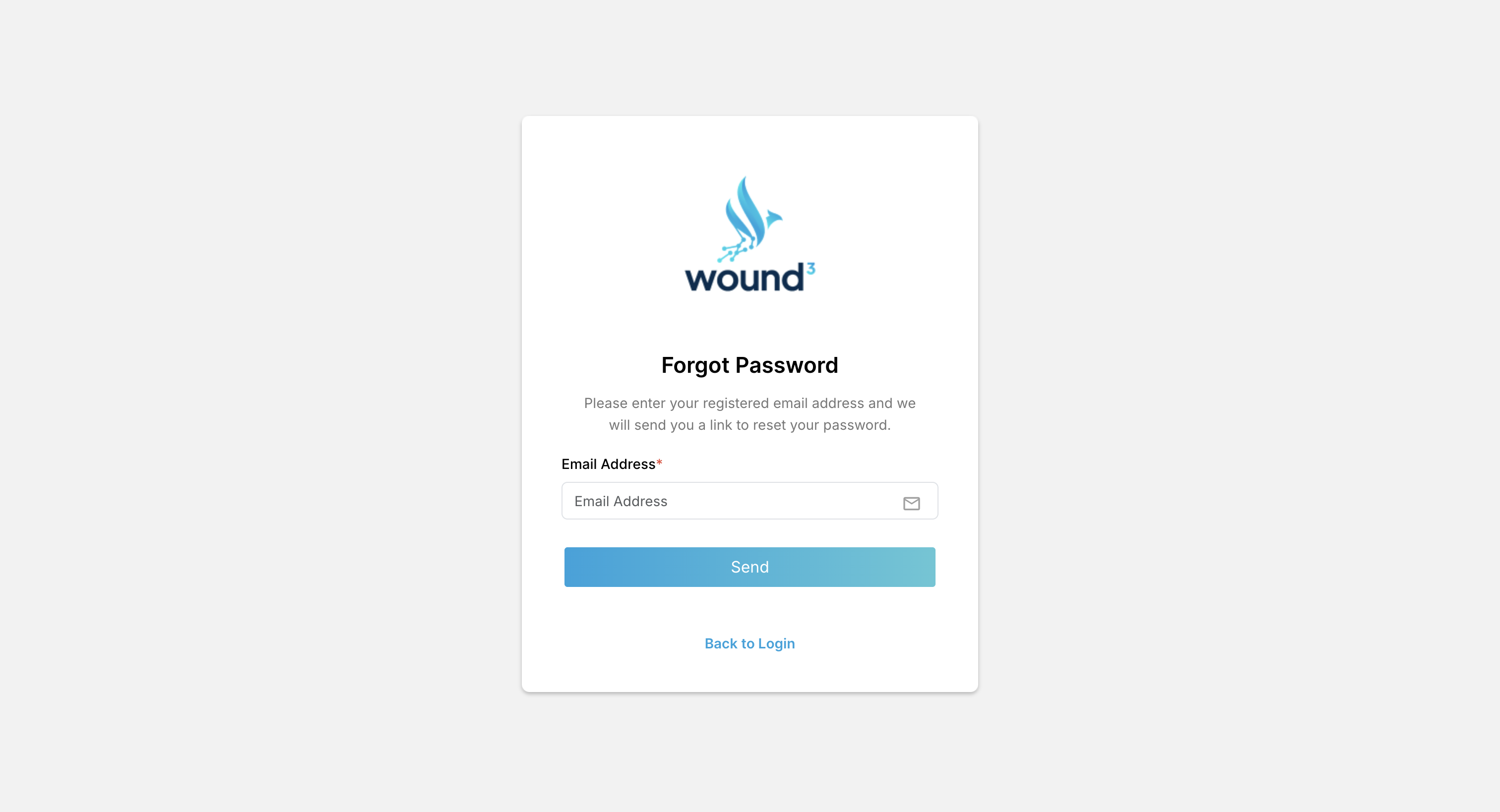
❓Didn't Request a Reset? If you receive a password reset email and did not request a password reset, you can safely ignore the email.
📧 Email Confirmation
When you reset your password, you will receive an email confirming that your password has been changed.
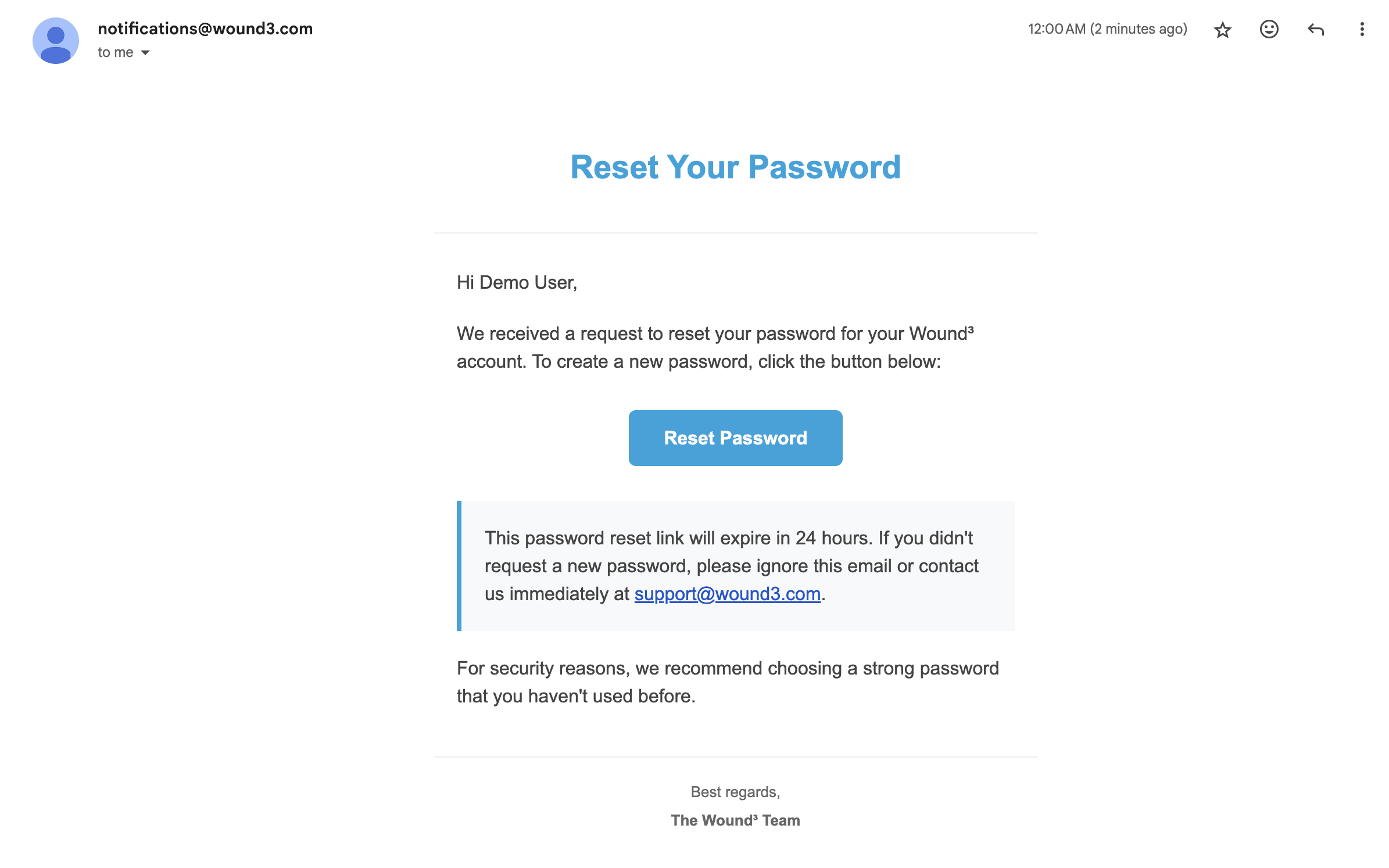
🚨Protect Your Account🚨 If you did not reset your password, please immediately contact support@wound3.com or your administrator to ensure your account remains secure.
🛡️ Protect Yourself from Phishing
All emails pertaining to your account will come from notifications@wound3.com. We will never ask for your login information or your OTP. If you believe the email you received was fraudulent, please contact support@wound3.com or your administrator to verify the email.
📋 What's Next?
Now that you've successfully logged into the web application, you can:
❓ Need Help?
For further assistance, refer to the Wound³ support documentation or contact your Facility Manager.